Keyboard shortcuts and capture tricks power users swear by
Efficient knowledge capture isn't about more clicks; it's about smarter ones. Power users know that mastering recording shortcuts, mid-capture markers, and batch operations drastically reduces documentation overhead and keeps knowledge bases current.
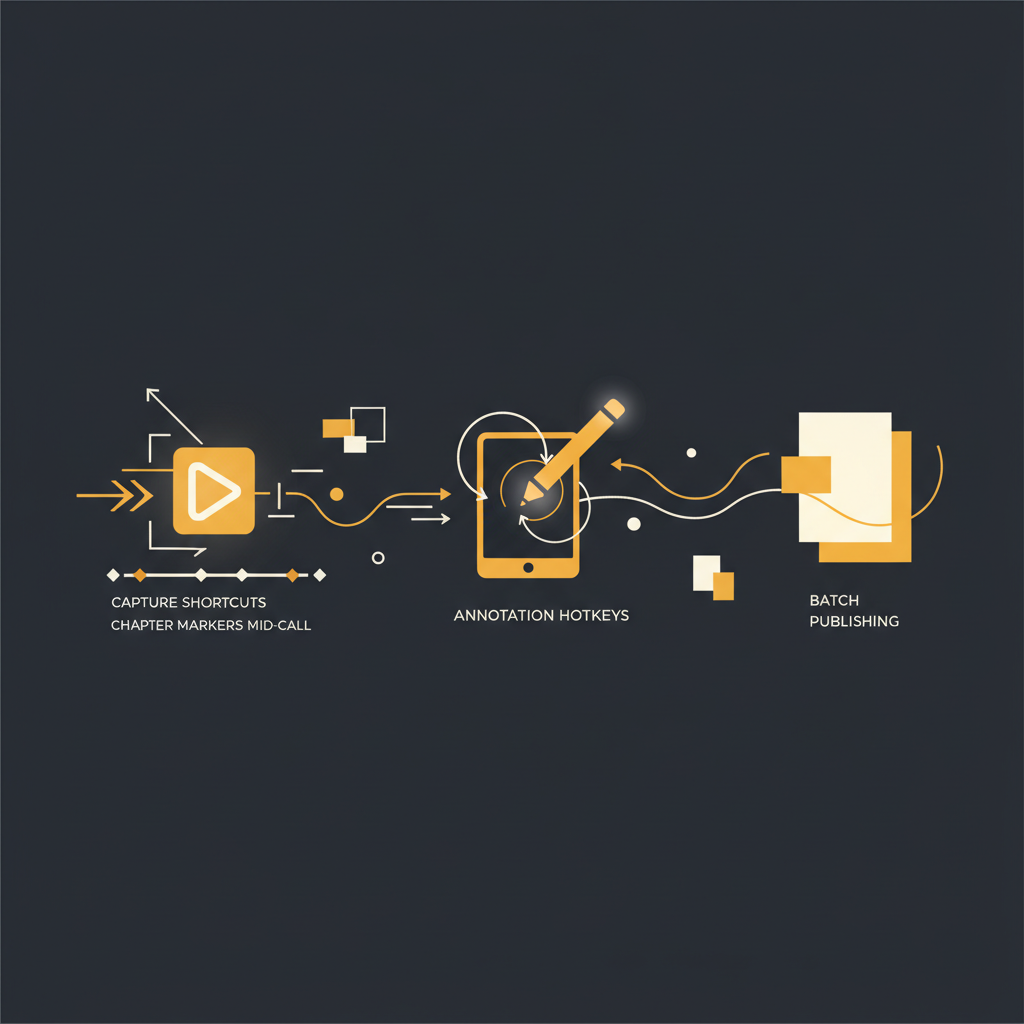
In the domain of operational efficiency, the distinction between merely documenting a process and truly optimizing its capture is often overlooked. Most teams spend an inordinate amount of time on post-production editing for process documentation, a clear indicator that the capture phase itself is inefficient. For those responsible for maintaining living knowledge bases, the goal isn't just to get information down, but to get it down accurately, completely, and with minimal friction. This requires a shift from passive recording to active, intelligent capture. The tools exist to make this happen, but like any powerful instrument, their full potential is only realized when wielded by a user who understands the nuances of control. This article outlines the essential shortcuts and capture strategies that differentiate a casual recorder from a true power user.
The Underrated Power of Keyboard-First Capture
Reliance on mouse-driven interfaces, while intuitive for initial learning, becomes a significant drag on productivity for repetitive tasks. Documentation capture, by its nature, involves sequences of actions, often across multiple applications and browser tabs. Each time a hand leaves the keyboard to navigate a menu or click a button within a recording extension, milliseconds are lost. Over the course of a 10-minute walkthrough, this can accumulate into several minutes of wasted motion, which then translates into longer editing times to trim extraneous movements or correct misplaced annotations.
Consider the cognitive load involved in switching modalities. When you are narrating a complex process, maintaining a coherent train of thought is paramount. Interrupting that flow to locate and click a pause button on screen can break concentration, leading to hesitations or forgotten details. Keyboard shortcuts, by contrast, keep your hands in a consistent position, allowing for seamless transitions between narration, action, and recording control. This isn't merely about speed; it's about maintaining focus and reducing the mental overhead associated with the recording process itself. For senior leaders overseeing operations, the implication is clear: training teams to adopt a keyboard-first approach to documentation directly translates to higher quality output with less effort, freeing up valuable time that would otherwise be spent on arduous post-processing.
Mastering Recording Controls: Beyond Start and Stop
Most recording tools offer basic start/stop functionality. Power users, however, demand finer control, particularly during live walkthroughs. The ability to pause, resume, and even cancel a recording instantly without breaking stride is critical for capturing clean, actionable content.
- Start Recording: Often a global hotkey like
Ctrl+Shift+1orAlt+Shift+R. The immediate benefit is avoiding the initial mouse dance to open the extension and click 'record'. - Pause/Resume: A dedicated hotkey (e.g.,
Ctrl+Shift+PorAlt+P) for pausing allows you to navigate to a sensitive screen, prepare for the next step, or simply gather your thoughts without capturing dead air or irrelevant information. This is invaluable when demonstrating a process that involves PII (Personally Identifiable Information) or proprietary data that needs to be obscured. A well-timed pause for quick redaction setup can save significant time compared to blurring elements in post-production. - Stop Recording: A definitive hotkey (e.g.,
Ctrl+Shift+SorAlt+S) to finalize the capture. This ensures that the recording ends precisely when the process concludes, preventing the capture of incidental desktop activity. - Cancel Recording: An escape hotkey (e.g.,
Ctrl+Shift+CorAlt+X) is essential for discarding a botched recording quickly, allowing for a fresh start without navigating through confirmation dialogs. This reduces frustration and encourages users to restart rather than trying to salvage deeply flawed captures.
The practical application of these controls means a cleaner initial capture, reducing the need for extensive trimming and editing. For a support team documenting a new troubleshooting flow, the ability to pause, check an internal knowledge base, and then resume without breaking the recording's continuity means a more fluid and professional end product for their agents.
Structured Capture: Chapter Markers and Live Annotations
The true power of advanced capture goes beyond just recording actions; it extends to structuring that information in real-time. Think of it as live content organization. Instead of capturing a monolithic video or a long sequence of undifferentiated screenshots, power users embed structural cues and critical information as they record.
Instant Chapter Markers
Imagine demonstrating a multi-stage process, such as onboarding a new client in a CRM. Traditionally, you might record the entire flow and then manually add chapter breaks or section headings in a post-editing interface. This is inefficient. Advanced capture tools allow for the insertion of chapter markers with a simple hotkey (e.g., Ctrl+Shift+M) during the recording itself. Each marker can be accompanied by a brief, contextual title, which automatically becomes a section heading in the final document. This drastically reduces post-production work and provides immediate navigational context for the viewer.
Stop writing docs nobody reads.
Record them instead.
Install the extension, walk through the tool you're tired of explaining. Tome Robot does the rest.