Recording your first walkthrough with Tome Robot: a 5-minute guide
Effective knowledge transfer often feels like a constant uphill battle, consuming valuable operational time. This guide outlines how to capture a complex workflow in under five minutes, transforming it into a self-updating, searchable article.
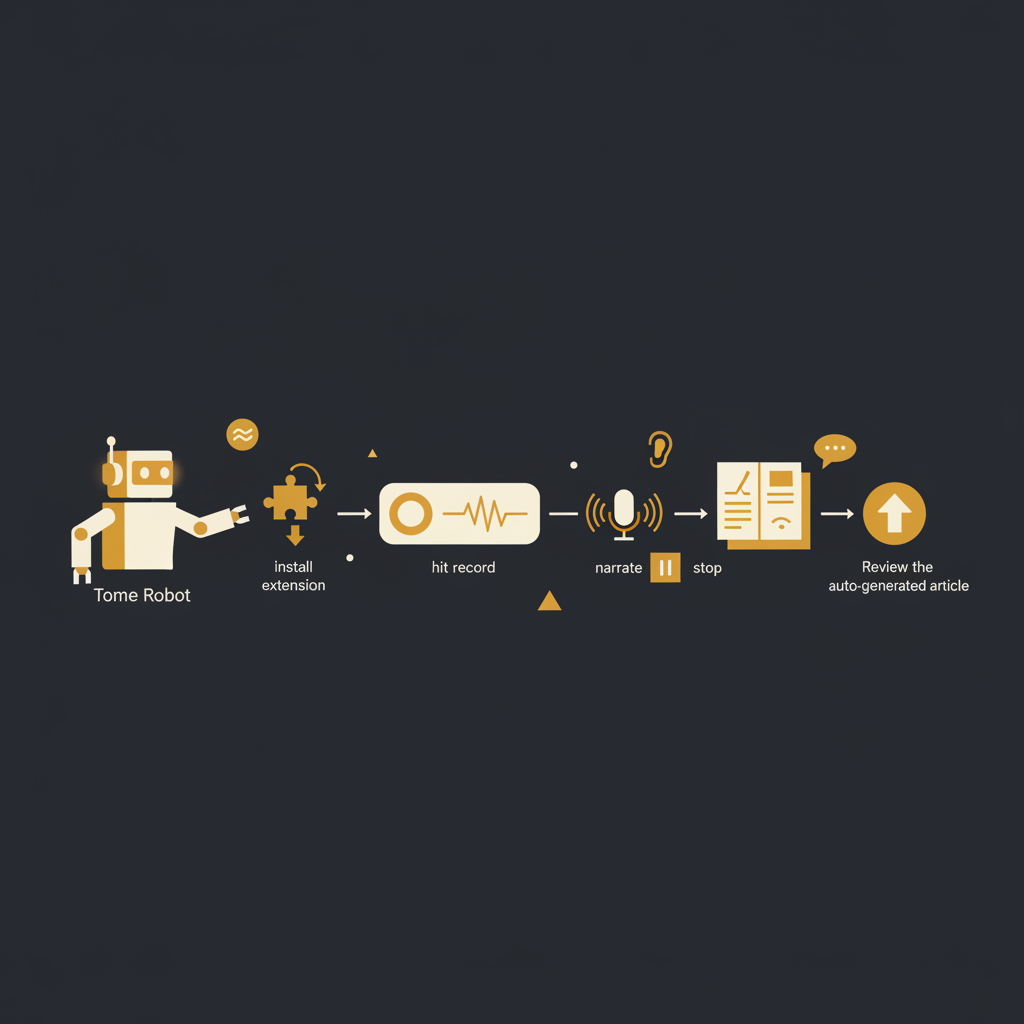
Maintaining accurate, accessible documentation for internal processes is a recurring challenge for operations, customer support, and engineering teams. Manual updates are often neglected, leading to outdated information and repeated inquiries. Capturing a live workflow, however, does not need to be an arduous, multi-hour project. This guide details a streamlined, five-minute process for recording a process walkthrough and generating a usable article, leveraging the capabilities of a system designed to keep knowledge current.
Installing the Extension and Preparing for Capture
The initial step is straightforward: acquiring the necessary capture tool. Navigate to the Chrome Web Store and search for the extension. Once located, click 'Add to Chrome' and confirm the installation. For convenience and immediate access, pin the extension icon to your browser's toolbar. This ensures it is always visible and one click away from initiating a recording.
Preparation for recording is minimal, which is by design. The objective is to reduce the overhead typically associated with documentation creation. Ensure you have access to the application or system where the workflow resides and that you are logged in with the appropriate permissions. There is no need for complex setup or pre-configuration. Your focus should remain on the process you intend to document, not the mechanics of the recording itself.
Executing the Walkthrough: Clicks, Context, and Concise Narration
With the extension installed and pinned, recording your first walkthrough is a simple sequence. Click the extension icon and select 'Record'. From this point, the system actively monitors your browser activity, capturing each click, field entry, and screen transition. As you navigate through your workflow, perform the actions as you normally would.
The critical element during this phase is narration. Speak clearly and audibly, describing each action as you perform it, but more importantly, explain the *context* and *purpose* of that action. For example, instead of merely stating, "Click here," articulate, "Click the 'Add New User' button to initiate the account creation process, ensuring a new record is generated within the system." This contextual narration transforms a series of clicks into an understandable, actionable guide.
A significant advantage of this approach is the automatic handling of sensitive data. The system is engineered to auto-redact personally identifiable information (PII) from screenshots and captured text during the recording process. This proactive measure mitigates common security and compliance risks, allowing you to focus on the workflow without concern for inadvertent data exposure. Once the workflow is complete, click the extension icon again and select 'Stop Recording'.
The Art of Narration: Delivering Utility, Not Prose
Effective narration is not about eloquence; it is about precision and utility. Your goal is to provide clear, unambiguous instructions and context to someone who may be entirely unfamiliar with the process. Consider these points when narrating:
- State the action and its immediate consequence: "Enter the client's email address into the 'Primary Contact' field to link all subsequent communications to their record."
- Explain the 'why': Briefly articulate the business reason behind a particular step. "Selecting 'Standard Role' from the dropdown is crucial here, as it applies the default permission set required for most new employees, avoiding manual configuration later."
- Anticipate questions: Address potential points of confusion. "If the system returns an error regarding duplicate entries, verify the user does not already exist before proceeding."
- Maintain a steady pace: Speak at a moderate speed, allowing the system to accurately transcribe your words and synchronize them with the corresponding actions.
- Focus on clarity over brevity: While conciseness is valued, do not sacrifice essential detail for the sake of brevity. A slightly longer, clearer explanation is preferable to a short, ambiguous one.
Think of your narration as the voice of an experienced colleague providing real-time coaching. This approach ensures the generated article is not just a sequence of screenshots, but a comprehensive, instructional resource.
Reviewing and Refining Your Auto-Generated Article
Immediately after stopping your recording, the system processes the captured data and presents a draft article. This draft typically includes a sequence of annotated screenshots, detected actions (e.g., 'Clicked button', 'Entered text'), and the transcribed narration for each step. Your role shifts from recorder to editor and quality assurance specialist.
Review the article critically. Check the accuracy of the transcribed narration against what you actually said. Edit any grammatical errors or awkward phrasing. Ensure the steps flow logically and that the accompanying screenshots accurately reflect the actions. You can typically reorder steps, add additional textual notes for clarification, or even remove redundant or erroneous steps directly within the platform's editor. The system handles the heavy lifting of structure and visual capture; your contribution refines it into a polished, definitive guide.
This review phase is crucial for ensuring the article's long-term value. A well-reviewed article minimizes future questions and reduces the need for subsequent edits. It is a one-time investment that pays dividends in reduced support overhead and improved team efficiency.
Publishing Your Article and Ensuring its Longevity
Once you are satisfied with the article's accuracy and clarity, the final step is to publish it. This typically involves clicking a 'Publish' button within the editing interface. The article then becomes a searchable, accessible resource within your knowledge base, immediately available to your team members. The true value, however, extends beyond simple publication.
A core challenge with any documentation is its inevitable decay as underlying systems and UIs change. Static documentation, whether text-based or video, quickly becomes obsolete, leading to user frustration and a return to ad-hoc support. Systems like Tome Robot address this by continuously monitoring the applications or websites covered by your recorded walkthroughs. If the underlying UI changes, for instance, a button moves or a field label is altered, the system automatically detects this discrepancy. It then flags the affected article for review, notifying the designated owner or team that an update is required.
This proactive flagging system shifts the burden from manual auditing to an automated alert, a significant operational efficiency gain. It transforms documentation from a static liability into a living asset, ensuring that the knowledge your team relies upon remains current and reliable. The goal is not merely to document, but to establish a living knowledge asset that reduces recurring questions and onboarding time, contributing directly to operational stability and team productivity.
Stop writing docs nobody reads.
Record them instead.
Install the extension, walk through the tool you're tired of explaining. Tome Robot does the rest.